DOCUMENTATION
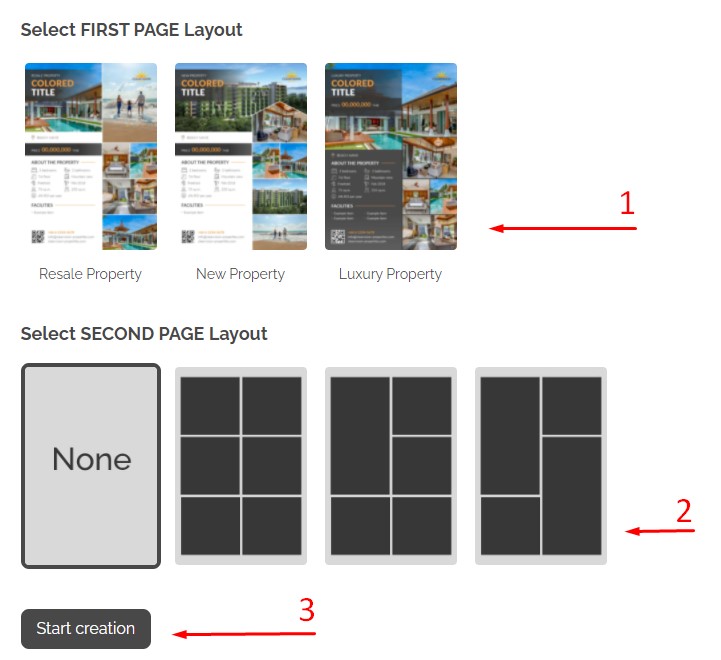
1. Layout selection
Select one of three templates (For Resale property, For New property or For Luxury property).
It's possible to add a photo gallery (4-6 images) to each template. The gallery is disabled by default.
2. Editable elements
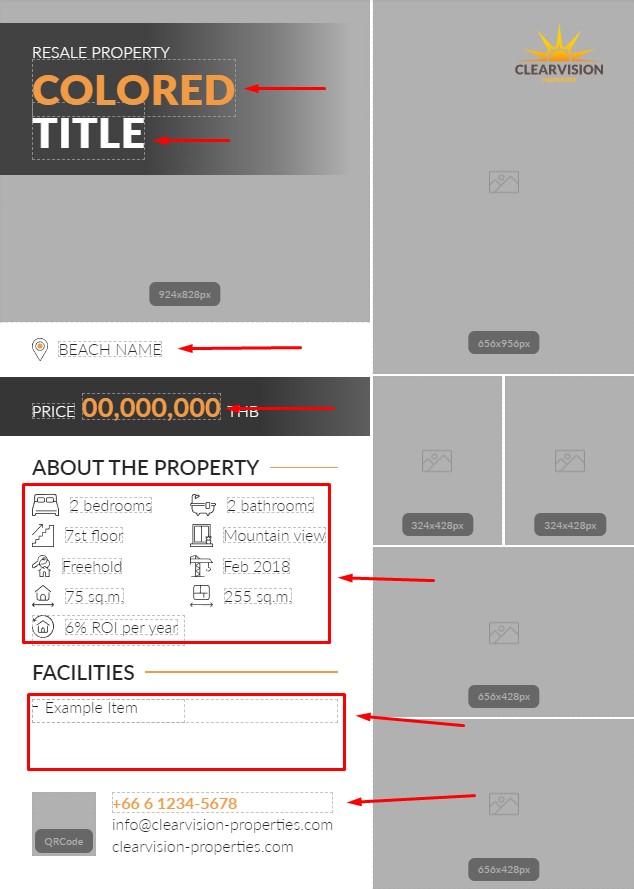
2.1. Common
Each editable element is marked with a dotted borders.
Double click on an element starts editing it.
2.2. Text
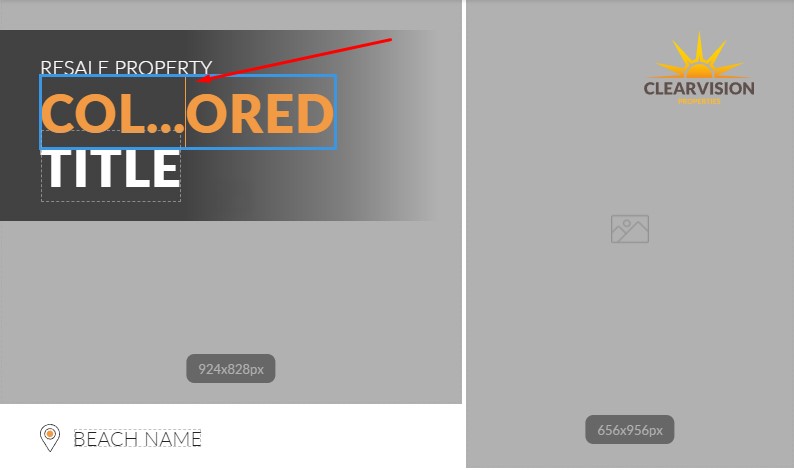
Select the element to be edited by double click. Change the sample text to real one.
2.3. Images
Each template has media storage. You can upload one or more images and use them in the constructor.
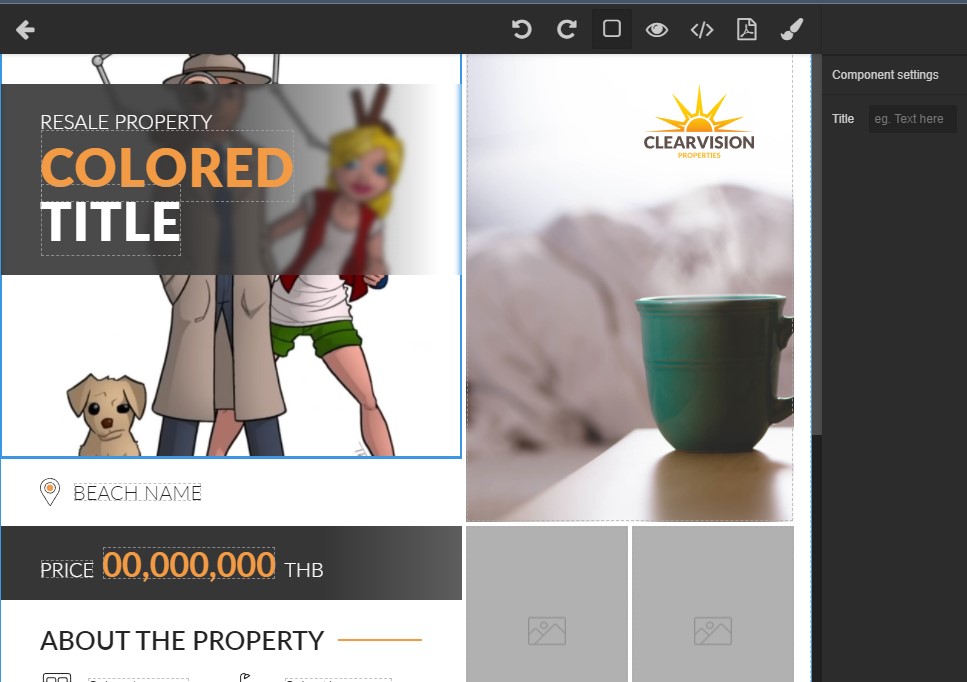
To upload an image(s) to the storage, double-click on any placeholder image.
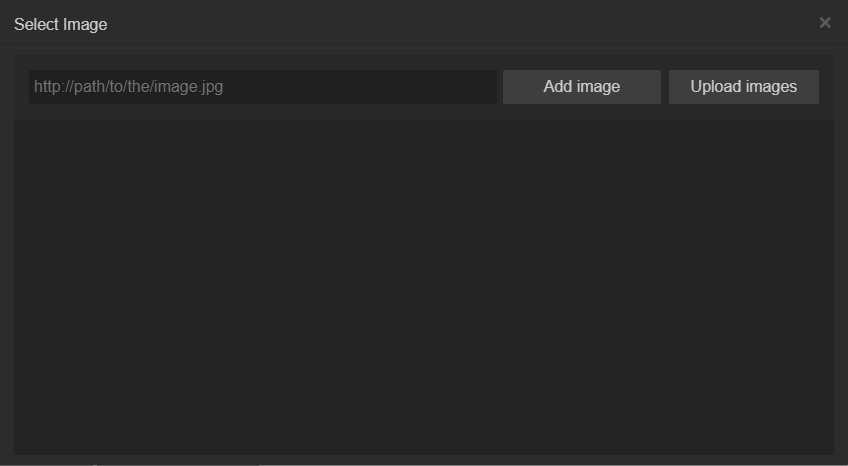
There are two ways to upload an image:
- Download image from link (Important! The link must lead directly to the image)
Paste the link in the field "http://path/to/the/image.jpg" and click "Add image"
(The screenshot below is upload image from Google for "sea" query).
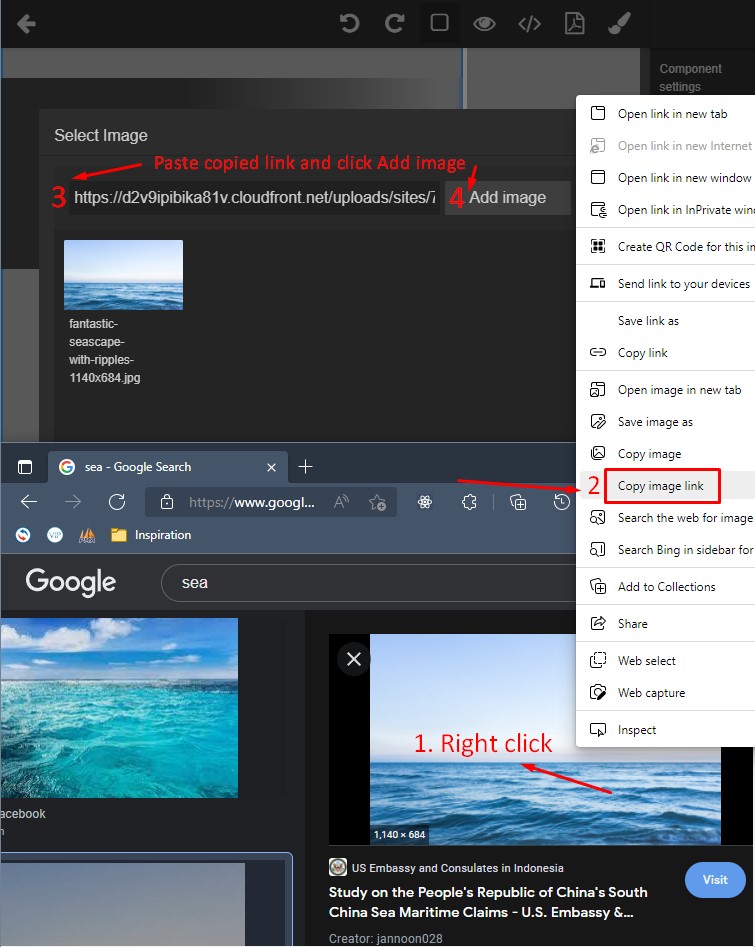
- Upload image from local machine (computer, laptop etc)
Click the "Upload images" button. Select the images for upload. Click the "Upload N file(s)" button. Wait for the images to load. Click Done for close image upload window.
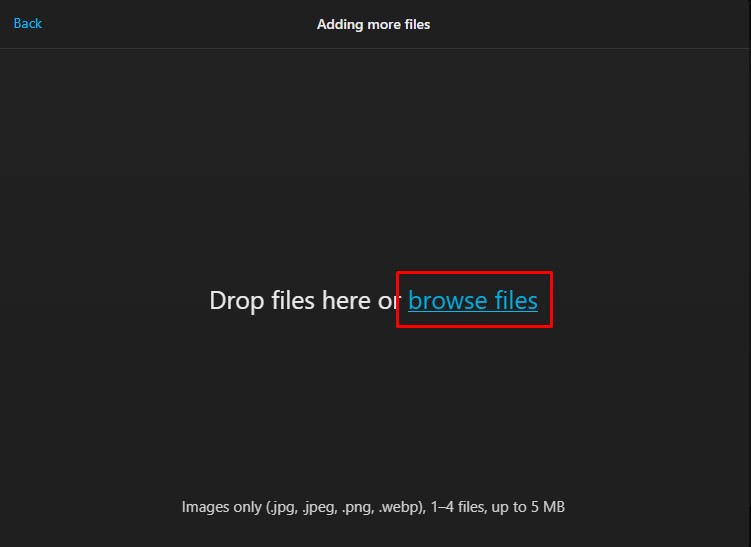
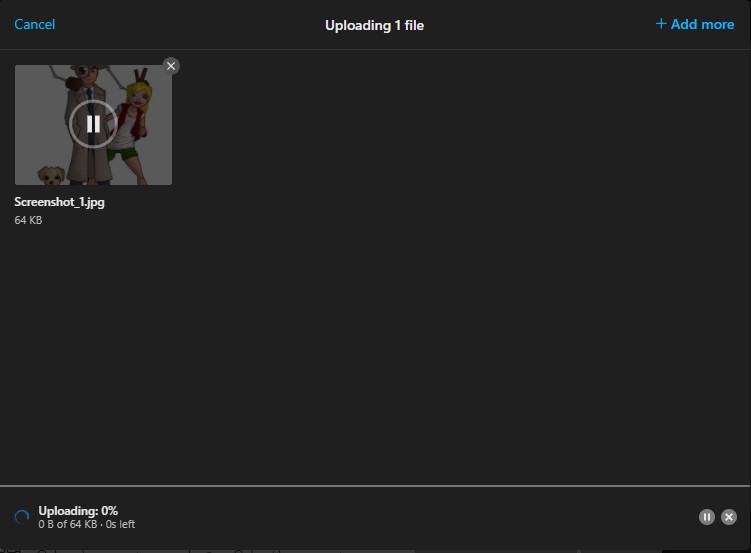
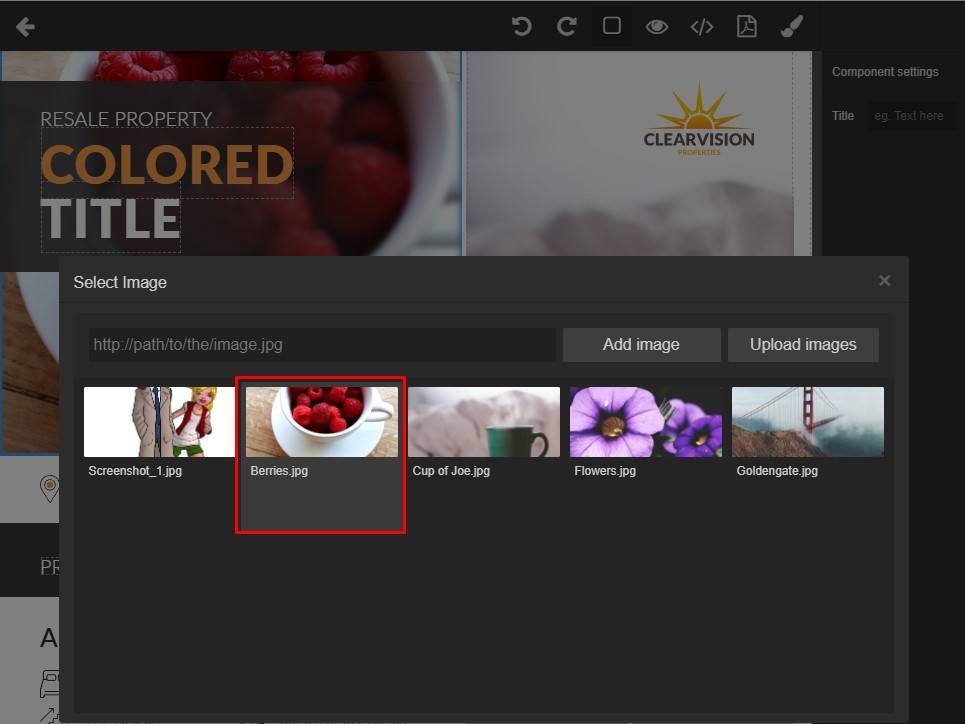
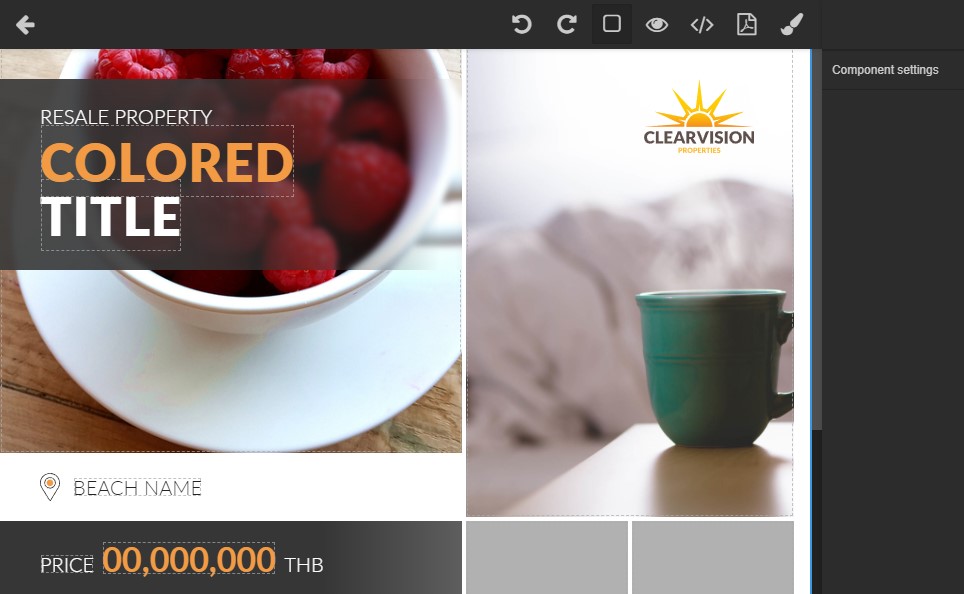
After the images are uploaded, need to select an image that will be inserted instead of the image placeholder.
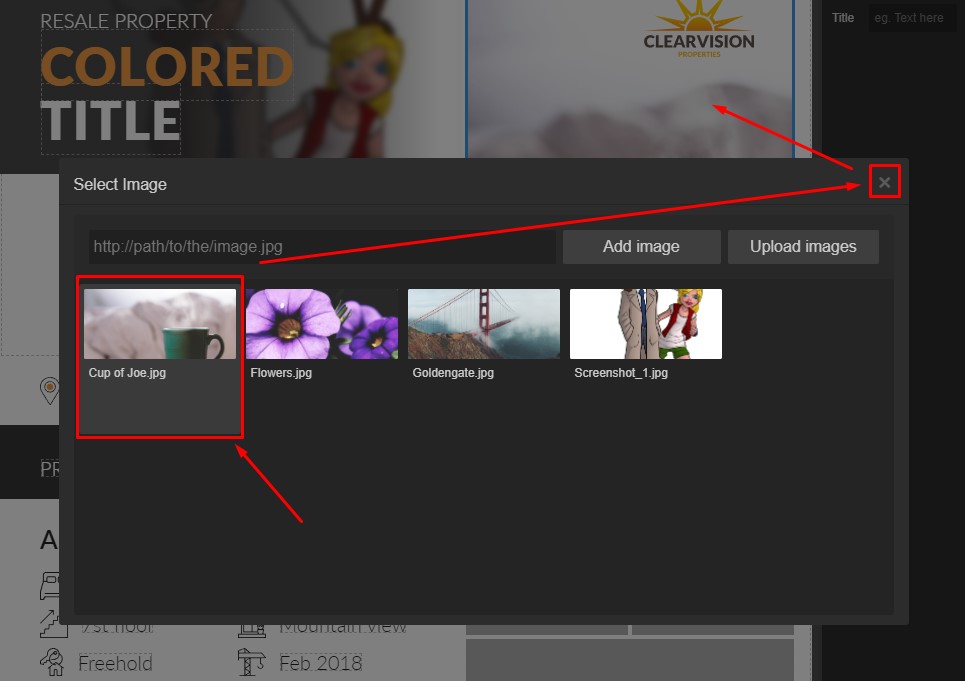
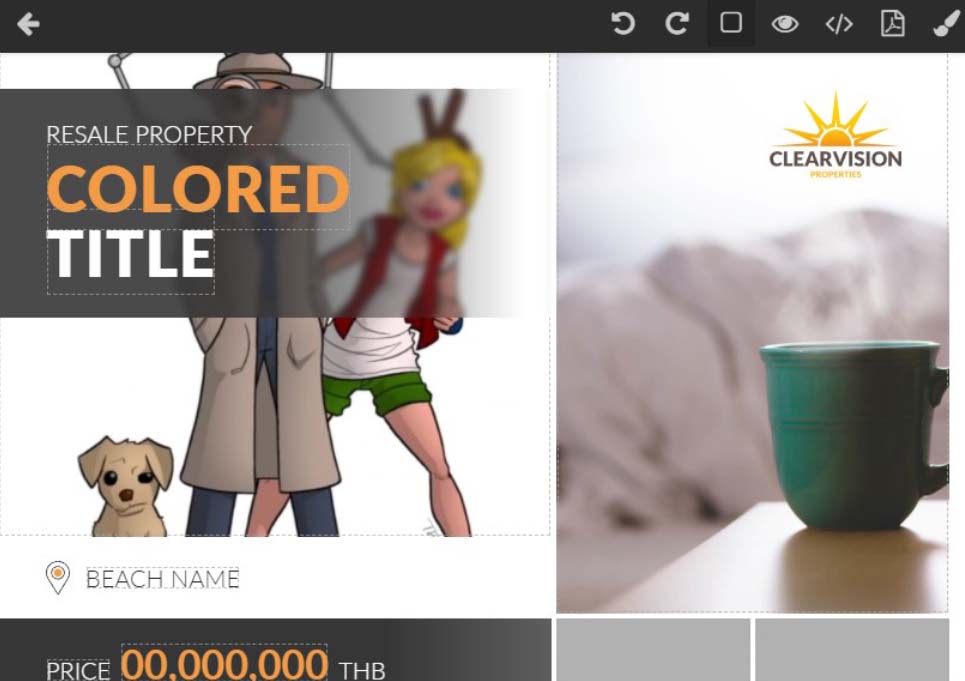
If you need to change the images double click on the image and select/upload another one.
2.4. QR Code
To create a QR Code, select "QRCode" item. Enter the URL address of your contact details (Telegram or Line or Website etc.) at the top right in the field "Enter a contact URL".
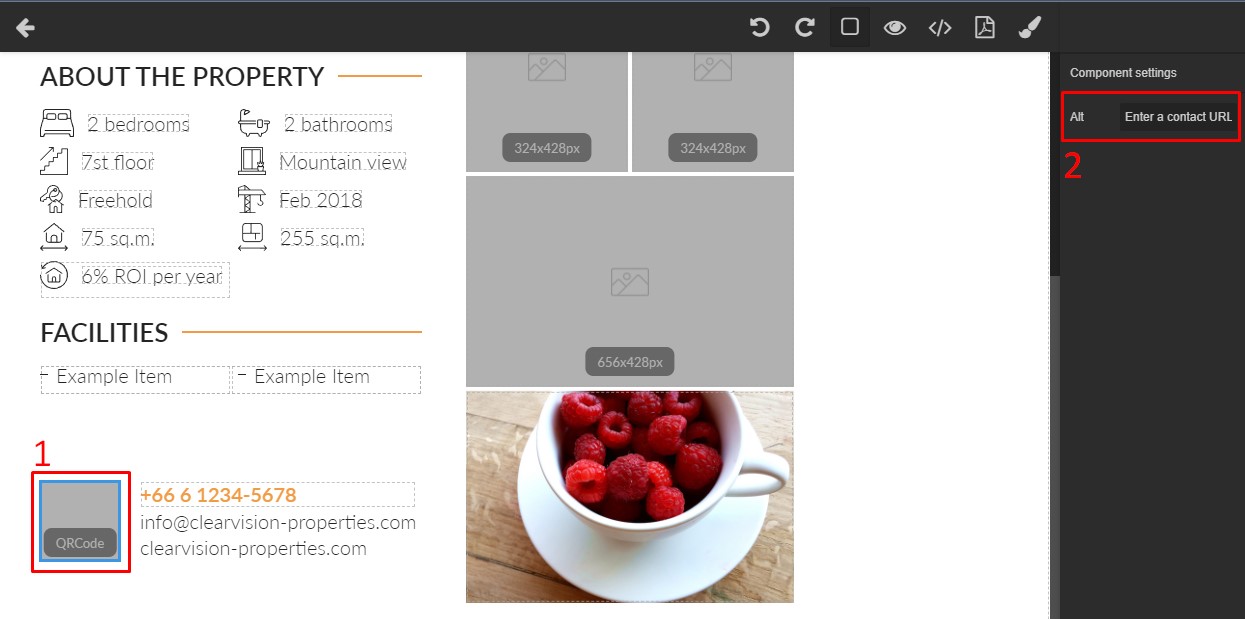
QRCode is generated automatically when generating a PDF file. QRCode is not displayed during the working with constructor.
2.5. About the property section
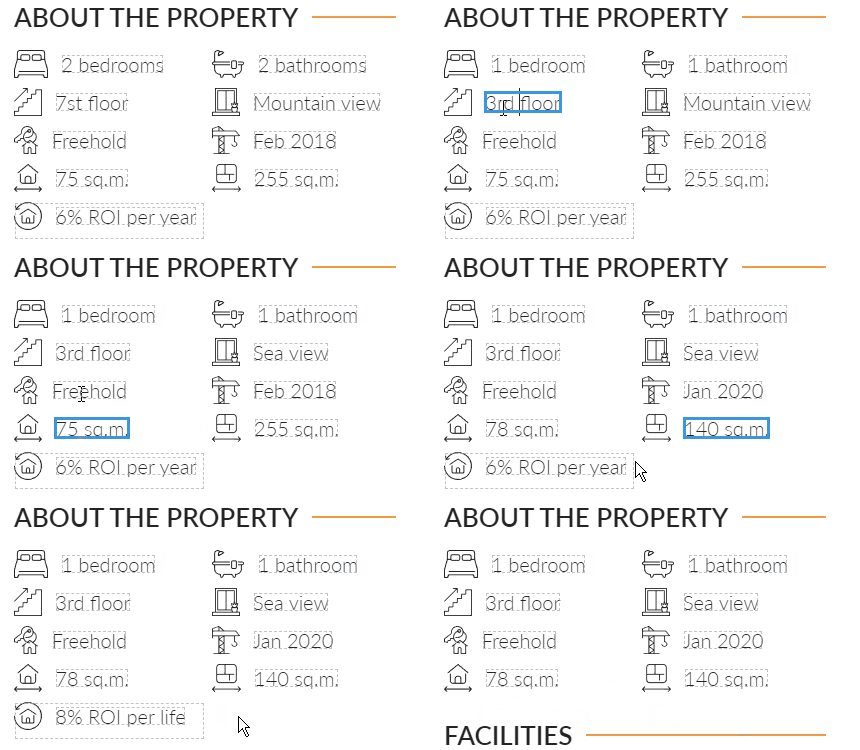
In this section, you need to change the test values to real ones. All items are mandatory except for "6% ROI per year".
The item "6% ROI per year" can be removed if the property does not provide for it.
2.6. Facilities section
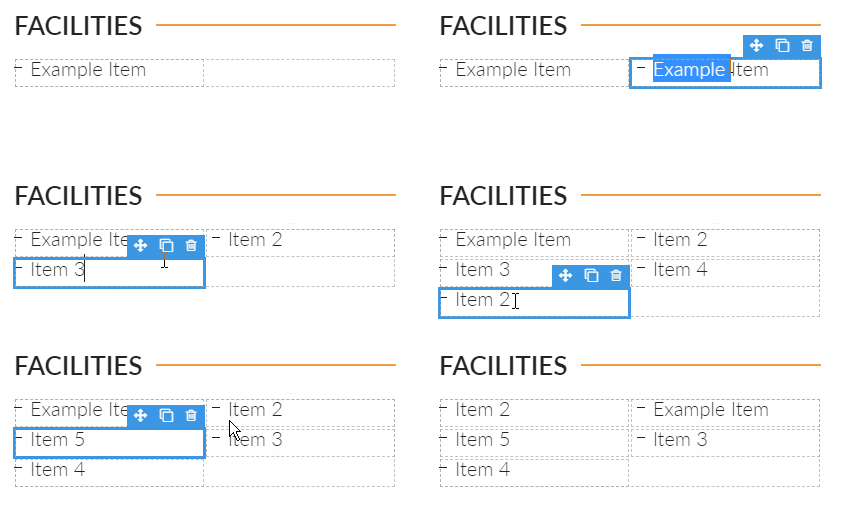
Facilities items are added by copying the previous one. The length of the text is 1-2 words per item.
To duplicate an Item, select anyone with a single mouse click. The item frame displays a toolbar - change the order of the item, clone the item, delete the item.
3. PDF file generation
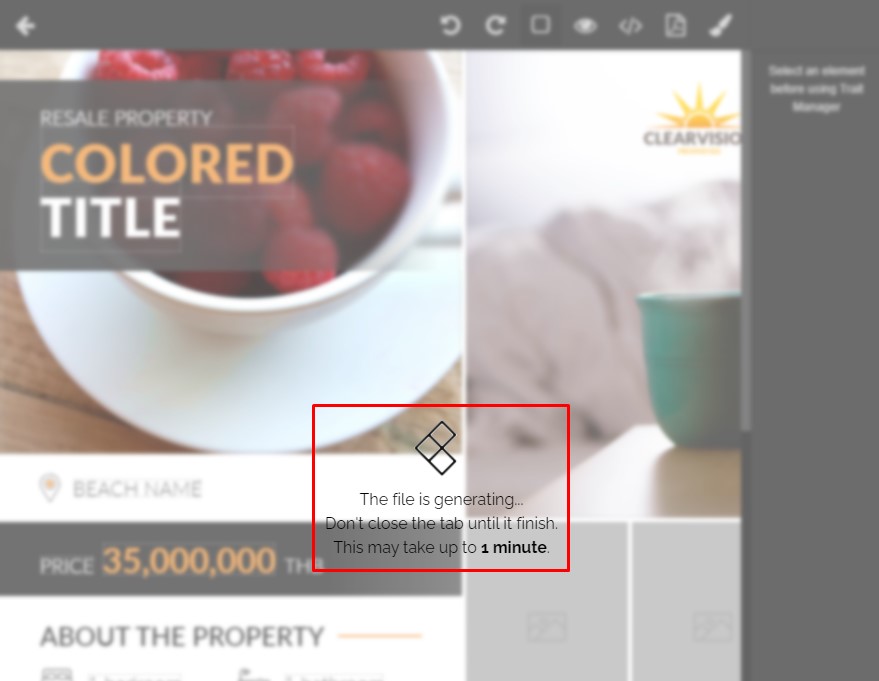
After the board is filled, can click on the PDF generation button. After completing the operation, the PDF file will be downloaded to your computer.

4. Toolbar

1) Back to Select Layout page
2) Undo last changes (1 step by click)
3) Redo last changes (1 step by click)
4) Show/Hide borders in editable elements (For better preview your result)
5) On/Off Preview mode (For better preview your result)
6) View code (For advanced users)
7) Start Generate PDF file
8) Clean current board (IMPORTANT! It's reset all data for default for this board)
5. Video tutorial